Write two requirements in the brief: what visitors must be able to do without a network, and what staff must be able to change without calling a developer. A kiosk can meet both if it keeps a complete published copy on the device and updates it through an agreed process.
Separate the app, the editor and kiosk mode
The visitor app presents the exhibit; a content management system (CMS) lets staff edit text, images and other agreed material. Kiosk mode keeps visitors in the intended interface. Opening a website full screen says nothing about whether it can start and play its media without a connection.
List everything the exhibit needs offline
Include translated text, fonts, captions, audio, video and any maps needed for the core visit. To spot hidden dependencies, ask where each item is loaded from. For example, keep an approved video and captions on the device if they must play offline. Give any live timetable or external stream a clear fallback.
Choose a publishing routine staff can repeat
For one screen with occasional edits, a versioned package installed on site may be enough. For several screens, consider scheduled synchronisation and a way for staff to see which version each screen actually received. Agree who previews and approves changes, and how to restore the previous complete version if an update fails.
Run a cold-start test on the actual kiosk
Before opening, disconnect the network and restart the device. Start a fresh visitor session, switch languages, play a captioned video and check that the next visitor gets a clean start. In a test setup, interrupt a content download and verify that the previous complete version stays usable. Reconnect and confirm that the approved update can finish.
What the ORNIS project tells you about scope
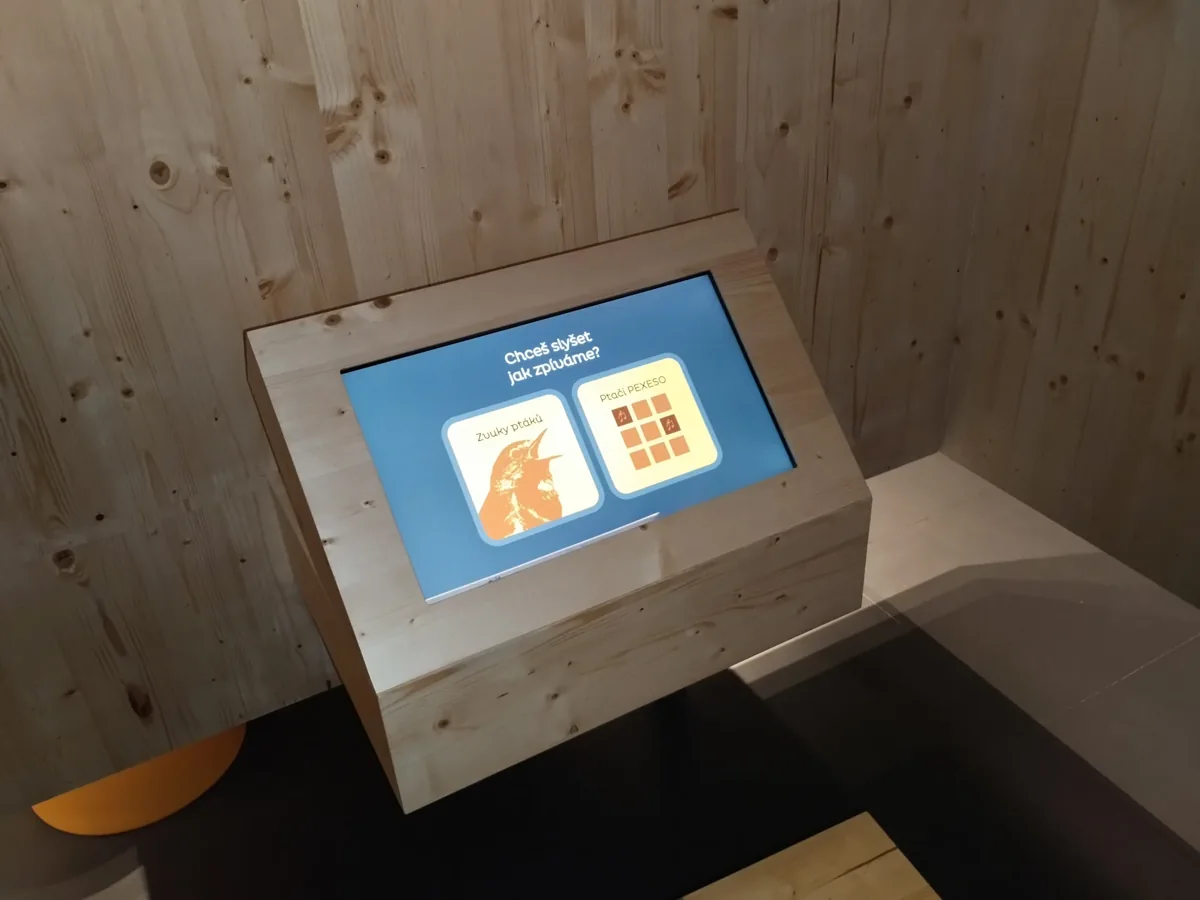
At ORNIS in Přerov, a project partner supplied the touchscreens and we created the bird information software and games, including a game based on matching bird calls. If you already have displays, include the computer, operating system, touch input and audio setup in the brief so the team can assess what to reuse.
Three ways to deliver the content
| Setup | When it fits | What to verify |
|---|---|---|
| Local package | One or a few screens with occasional edits. | An authorised member of staff can install and restore a known version on site. |
| Local playback with synchronised updates | Several kiosks need the same content and can connect for updates. | A disconnected kiosk keeps playing its latest complete version and catches up after reconnecting. |
| Presentation served live from a website | Current online data is essential and the venue can support that dependency. | A connection failure shows a useful substitute or a clear message, with a way back to the home screen. |
Before you request a proposal
- Name the features that must work offline and the ones that can wait for a connection.
- Bring a real set of media and translations to the test, including the largest video.
- Ask staff to publish a correction and identify the version on the kiosk.
- Agree who holds the content export, installation instructions and a usable backup.
Questions worth asking
Can we publish remotely and still run offline?
Yes, if the kiosk stores the complete visitor experience locally. The editor and delivery of new versions can require a connection while the exhibit keeps running with its last complete version.
Can we keep an existing touchscreen?
Possibly. Check the display and the computer that runs it separately. Test touch input, screen orientation, audio and the most demanding piece of content on that setup.
What should a handover include?
Ask for a list of online dependencies, an editable content export or agreed equivalent, recovery instructions, and a named contact for software issues.
Turn the idea into a brief
Tell us which visitor activities must stay available without internet, what equipment you already have and which edits your team needs to make.